Install the app and connect your radio
Get the app
| Platform | Where |
|---|---|
| Android | Google Play, or the .apk on the releases page |
| iPhone | App Store, iOS 16.4 or newer |
| Windows, macOS, Linux | The offband-windows-x64.zip, offband-macos.zip and offband-linux-x64.tar.gz downloads on the releases page |
| Web | offband.app in Chrome or Edge |
The web app uses Web Bluetooth, which works only in Chromium-based browsers (Chrome, Edge) and not in any browser on iPhone or iPad; on an iPhone, use the App Store app. TCP connections are not available on the web.
Connect
Your radio must run MeshCore companion firmware. A repeater or room-server image can't be connected to directly; manage those from the app with a repeater login.
- Bluetooth: scan from the app's first screen and pick your radio, then enter
its pairing PIN when your device asks for it:
- A radio with a screen shows a new PIN on its screen each time it starts.
- A radio without a screen, such as the SenseCAP T1000-E or a QCC badge without a display, uses 123456.
- Once you set your own PIN, the radio uses that instead. See or change it under Settings > Actions > BLE pairing PIN.
- USB: plug the radio in and choose its serial port.
- TCP: enter the host and port of a radio that is reachable over your network. Not available on the web.
Find your way around
Once connected, the app opens on three tabs:
| Tab | What it's for |
|---|---|
| Contacts | People, repeaters and other nodes your radio knows, and direct messages with them |
| Channels | Group conversations: Public, hashtag channels and private channels |
| Map | Nodes with known positions, path traces and line-of-sight checks |
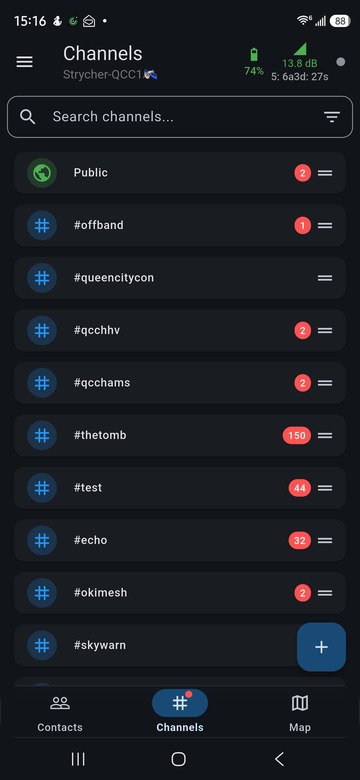
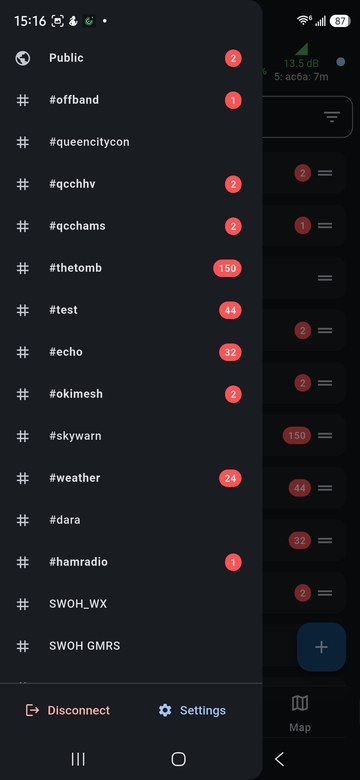
The top of each tab shows your radio's name, battery level and the signal of the last packet it heard. The menu button at the top left opens the side panel, which holds your channel list, Disconnect and Settings.